
Figma AI Image Generator Now Compares 3 Models. Worth It?
Figma's AI image generator now gives 6 options per prompt or compares 3 models side by side. What shipped Nov 18, the real credit cost, and how I'd use it.
On November 18, 2026, Figma updated its AI image generator so one prompt can return several images at once. Pick a single model and ask for two, four or six options, or select up to three models and get one image from each, side by side on the canvas. It works in "Make image" and "Edit image" across Figma Design, FigJam, Slides and Draw. So yes, the Figma AI image generator is now a real comparison tool, not a slot machine you pull one lever at a time. My verdict: this is useful for exploring a direction early, and it gets expensive fast if you treat it like a stock photo search. The credit cost per image changes a lot depending on which model you pick.
Here is what shipped, what it changes for product designers, where the hype runs ahead of the help center, and how I would fit it into the way I already work, from Figma frame to shipped code.
What the Figma AI image generator update actually is
The change is listed in Figma's official release notes on November 18 as "Generate multiple images from a single prompt". The Figma help article on generating and editing images describes the flow:
- One model, many options. In the model picker, choose 2, 4 or 6 images for a single prompt.
- Several models, one image each. Click the plus next to another model to compare up to three models on the same prompt.
- Preview in place. Hover an option to see it inside your layer, or use "Place all on canvas" to lay every option out side by side.
- Same edit tools. Edit with a prompt, erase or isolate an area with the lasso, remove the background, expand the image or boost its resolution.
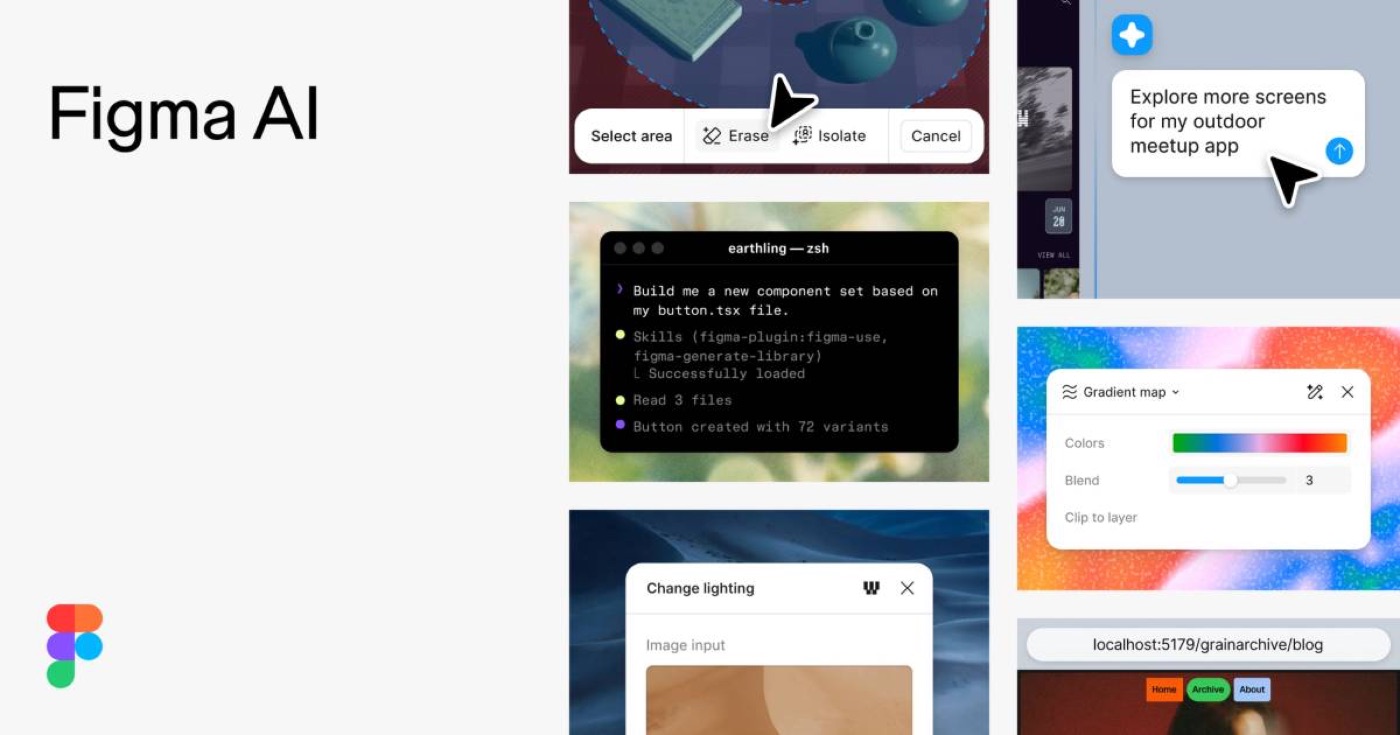
It is available on all plans, with one catch: on the Starter plan, the AI image tools only work in Figma Design. You need edit access to the file. And everything runs on Figma AI credits, the same pool every other Figma AI feature draws from.
The credit table is the part most launch posts skip. According to Figma's "How AI credits work" article (rates as of October 15, 2026), Make image and Edit image cost 2 credits per image on GPT Image 2.5 Sunburst, 6 on Nano Banana 2 Lite and 16 on Nano Banana 2. Boost resolution, erase and expand each cost 5 to 10 credits per image.
What it changes for product designers
The real change is not "more images". It is that comparison now happens where the decision happens: on the canvas, inside the frame, next to the type and the components that the image has to live with.
Before this update, exploring an image direction in Figma meant prompt, wait, judge, re-prompt. You judged each image alone. That is the worst way to choose anything. Designers pick well when they can see three options next to each other and say "that one, but warmer". Six variants in place, previewed inside the actual hero layer, turns image generation into the same muscle we use for type and color: compare, narrow, refine.
The three-model compare matters for a quieter reason. Models have personalities. One renders product shots cleanly but flattens light. Another nails mood and gets hands wrong. Until now you had to pay for a separate tool or run the same prompt in three tabs to learn which model suits a brief. Figma now does the A/B for you, on the same prompt, with the cost visible per model.
I have designed this exact pattern before, from the other side. At ViewStats, the creator platform built by the team behind MrBeast, I led design on AI tools that included thumbnail generation, text-to-thumbnail, variations and thumbnail testing. Variations were never a nice-to-have. A creator does not trust one AI output. They trust the act of choosing between several. As I wrote in the ViewStats creator tools case study, the biggest challenge was not designing the interface, it was designing trust. Figma has arrived at the same answer: give people options, put them in context, and let the human make the call.
Hype vs reality
The release note is careful. The posts reacting to it are less careful, so here is what the official pages do and do not say.
| What people say | What Figma's pages say | My read |
|---|---|---|
| "Figma now generates six images for free" | Every image draws AI credits: 2, 6 or 16 per image depending on the model. | Six images on Nano Banana 2 is 96 credits for one prompt. Start on the cheap model to find the direction. |
| "You can compare any model" | Up to three models per prompt, from the models in Figma's dropdown. | Good enough to learn each model's strengths for your brief. Not a full model marketplace. |
| "It replaces stock photos and illustrators" | The update is about options per prompt and editing in place. | It replaces the first rough round of exploration. Brand imagery still needs art direction and a consistent style. |
| "It works the same everywhere in Figma" | All plans, but Starter only gets AI image tools in Figma Design. | Check your plan before you promise FigJam or Slides workflows to a team. |
| "The pricing is set" | Credit rates are "as of October 15, 2026" and can change. | Re-check the table before you build a team habit around one model. |
Two limits the release note does not mention, from my own experience with AI imagery in product work. First, AI images still drift on text. Lettering, UI inside a screen, logos: treat all of it as placeholder. Second, six options from one prompt are six takes on the same idea. If the prompt is vague, you get six vague images faster. The tool multiplies your brief. It does not write it.
How I would use it in my workflow
My rule for AI imagery and AI video is that Figma frames keep the model honest. I design the frame first, with real type and real layout, then generate only the plate behind it. When I make AI video for interfaces, I hide the text before I export the frame the model sees, and I put the live type back on top afterwards. That way the model never gets a chance to mangle a headline. I explained that process in my post on AI motion design in real interfaces. You can see AI video sitting inside a real scroll layout in the Ocean jellyfish experiment.
The new compare mode slots straight into that habit. Here is the order I would use:
- Frame first. Lay out the hero, card or onboarding screen with final type and spacing. Hide the text layer.
- Cheap exploration. Run the prompt on the 2-credit model and ask for six options. Place all on canvas.
- Model check. Take the best direction and run it once across three models to see which one handles the light and material you need.
- Refine on one model. Edit with a prompt, erase what is wrong, expand to the aspect ratio, boost resolution last.
- Type back on. Show the live text layer and judge the image as part of the screen, not as a picture.
Then the frame goes to code the way all my work does now, through the Figma MCP to Claude, or as the first and last frame of an AI video. Every one of the builds on my AI design experiments page started as a Figma frame like this, and many of them carry motion and sound on top: physics, Rive animation, Web Audio. The image is one layer of the product, never the whole product.
Where I would not use it: final brand photography for a launch, anything that shows a real person, or icons. For icons, Figma's agent now draws real vectors, which I covered in Figma AI icons that come out editable. Raster images are the wrong format for a system you need to maintain.
And one more thing worth carrying over from the ViewStats launch. AI image tools touch the work of illustrators and photographers. When our AI thumbnail tools shipped, the backlash became the story, and I wrote about it in AI ethics in design after the thumbnail backlash. If your team uses this for client work, decide early where generated imagery is fine and where you still commission a human. That decision is part of the design, not a legal footnote. My broader view is in the AI product design guide.
FAQ about the Figma AI image generator
Does Figma have an AI image generator?
Yes. "Make an image" is in the Actions menu in Figma Design, FigJam, Draw, Slides, Sites and Buzz. Select a layer to fill it, or deselect everything to create a new image layer, then type a prompt, pick a model and optionally add a reference image.
How many images can Figma AI generate from one prompt?
Since November 18, 2026, two, four or six images from one model, or one image each from up to three models when you compare them.
How many credits does a Figma AI image cost?
Per Figma's credit table as of October 15, 2026: 2 credits per image on GPT Image 2.5 Sunburst, 6 on Nano Banana 2 Lite and 16 on Nano Banana 2. Boost resolution, erase and expand cost 5 to 10 credits per image.
Is the Figma AI image generator good enough for product UI?
For backgrounds, hero plates, empty-state art and early mood exploration, yes. For text inside images, logos, UI screenshots and icons, no. Keep type live in Figma and use vector tools for icons.
Should I still use a separate AI image tool?
If you need video, a trained character or a model Figma does not offer, yes. For picking a direction while you design a screen, keeping it on the canvas saves the export and import loop.
What to do this week
Open one real screen you are working on, hide the text, and run the same prompt as six options on the cheapest model. Then compare the winner across three models. You will learn more about which model fits your product in ten minutes than from any comparison thread. If you are building an AI feature, a creative tool, or a product that needs motion, interaction and sound designed and shipped as one piece, work with me as your product designer.
hello@ayoubka.com
If you have a web or mobile app idea in mind or you need some advice about product design, feel free to get in touch ✉️